
15 Powerful Things You Can Do With Google Drive You Probably Didn’t Know
You probably open Google Drive every day without realizing how much time it can save you. Most people use it to upload documents, create folders, and share files. That barely scratches the surface.
Google Drive can help you recover older versions of documents, find files faster, keep important folders within reach, and protect sensitive information. You can also scan paper documents directly from your phone and save them to the right folder within seconds. When you need an editable version of a PDF, Drive can help you turn that file into a Google Doc.
The sharing tools can also make remote work much easier. You can control access, publish documents for public viewing, track activity, and limit what other people can do with your files. Those features become especially useful when you collaborate with clients, manage projects, or handle confidential documents.
You can even work without an internet connection when you make important files available offline. That small adjustment can save you when you travel or lose network access unexpectedly.
Better Google Drive habits can also improve your overall digital workflow. For example, 9 FREE AI Tools Every Remote Worker Should Have in 2026 can complement your file organization by helping you work faster and manage repetitive tasks.
Once you start using these features intentionally, Google Drive feels less like a storage folder and more like a complete productivity system.
15 Powerful Things You Can Do With Google Drive
1. Scan Documents With Your Phone Straight Into Google Drive
You do not need a separate scanner to save physical documents digitally.
Google Drive can turn your phone into a quick document scanner. Open the Google Drive app on your phone and tap the plus sign. Choose the scan option, then take a clear picture of the document.
You can crop the edges and adjust the image before saving it. Choose the folder where you want the scanned document to live, then save it.
This feature works well for receipts, identification documents, contracts, school paperwork, invoices, and other records you need to keep accessible.
It also helps reduce paper clutter. You can scan an important document immediately instead of carrying it around or searching through drawers later.
A useful habit involves creating dedicated folders before you begin scanning. You might create folders for finances, work, school, personal documents, or client records.
That simple system makes future searches much easier.
If you regularly work with digital documents, 10 Websites to Start Learning Graphic Designs for FREE can also help you develop skills for creating polished presentations and visual resources.
2. Turn Almost Any File Into a PDF
Google Drive can help you convert documents, images, and other compatible files into PDF format.
Open the file you want to convert. Go to File, choose Download, and select PDF Document.
The process takes only a few seconds.
PDFs are useful when you want to preserve formatting before sending a document to someone else. They also work well for invoices, reports, proposals, forms, presentations, and downloadable resources.
For example, imagine you create a document that looks perfect on your computer. Sending the editable version could allow someone to accidentally change the formatting.
A PDF keeps the layout consistent.
That makes it particularly useful for professional communication.
You can create the document in Google Docs, convert it into a PDF, then share the finished version with a client or employer.
This simple workflow can make your files look more professional without requiring complicated software.
It also helps when someone needs to view your work without changing the original file.
3. Use Version History to Recover Older Copies
Have you ever opened a document and discovered that someone changed something important?
You may think the original version has disappeared.
Google Drive can save you.
Google Docs, Sheets, and Slides include version history that lets you review earlier versions of a document.
Open the file and click File. Then choose Version history and select See version history.
You can review previous edits and identify an older version.
Once you find the version you need, select it and choose Restore this version.
This feature becomes extremely useful when you work with clients or teams.
Someone might accidentally delete a section.
A collaborator could change important information.
You might make edits that you later regret.
Version history gives you a way to recover.
It also creates greater confidence when collaborating because you know previous work remains accessible.
For professional projects, this feature can prevent hours of unnecessary rebuilding.
You can also combine Google Drive with 6 FREE Websites That Gets You Hired FAST when preparing documents and applications for remote opportunities.
4. Add Comments and Assign Tasks Inside Documents
Google Drive is not just for creating documents.
You can also use Google Docs for collaboration.
Suppose you send a client a document for review.
Instead of sending separate emails about every correction, the client can leave comments directly beside the relevant text.
Open the Google Doc and highlight the section that needs attention. Click the comment icon, write the message, and mention a collaborator using their name or email address.
You can also assign the comment as a task.
This approach keeps feedback attached to the exact part of the document being discussed.
That reduces confusion.
It also helps teams avoid long email chains where important instructions become difficult to track.
This feature works well for client approvals, editing projects, team reviews, proposals, reports, and content planning.
Imagine a writer working with an editor.
The editor can highlight a paragraph and leave a specific comment.
The writer can make the change without guessing what the editor meant.
The same system works for designers, project managers, virtual assistants, teachers, and students.
If you work remotely, 8 SMART Ways to Find Clients on X (Twitter) and Get Hired FAST can help you find clients who may eventually collaborate with you through tools like Google Drive.
5. Use Drive Search Like a Pro

Searching manually through hundreds of files wastes time.
Google Drive provides filters that can help you locate documents much faster.
Open Drive and select the search bar.
Use the filter option to narrow your search by file type, owner, location, or modification date.
This becomes extremely useful when your Drive contains years of documents.
Imagine you remember that you created a proposal last year but cannot remember the folder.
You can filter by document type and narrow the search by date.
You could also search for files created or modified by a particular person.
This method can turn a frustrating search into a quick task.
Good file names also matter.
Instead of naming a document “Final Report,” use a descriptive name such as “Client Marketing Report August 2026.”
Specific names make future searches easier.
Combine descriptive names with Drive filters, and your file system becomes much easier to manage.
If you handle large amounts of information, 9 Websites That Teach You EXCEL Courses for FREE can also strengthen your data organization skills.
6. Star Important Files for Quick Access
Some files deserve immediate access.
You may work with the same proposal every day.
Perhaps you regularly open a client spreadsheet.
You might need a particular project brief several times each week.
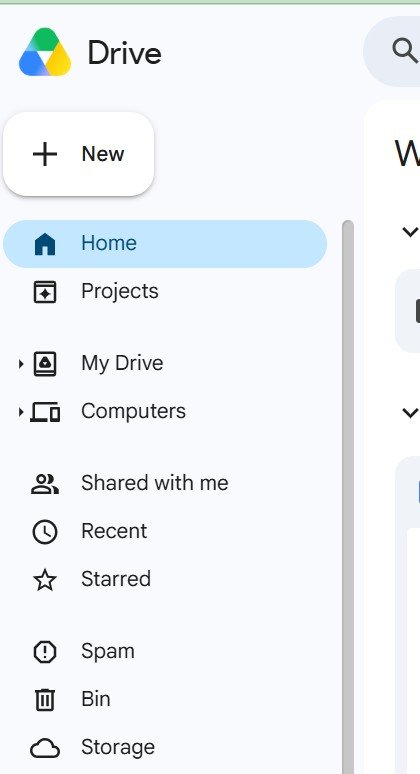
Instead of searching repeatedly, add those files to Starred.
Right-click the file or folder and choose Organize. Then select Add to Starred.
You can find starred items from the left-hand menu.
This feature works like a shortcut.
It helps you separate important files from everything else stored in Drive.
Be selective.
Do not star hundreds of documents.
Choose files that you genuinely access often.
A small collection of important documents makes the feature much more useful.
You can update your starred items as projects change.
That way, your most important work stays close at hand.
Come back to this: 9 places people can find remote clients immediately (that nobody is talking about)
7. Create Shortcuts Instead of Duplicating Files
People often create duplicate files because they want the same document to appear in multiple folders.
That approach can create confusion.
You may end up editing the wrong copy.
Google Drive offers a better solution.
Use shortcuts.
Right-click the file or folder you need. Choose Organize, then select Add shortcut.
Choose where you want the shortcut to appear, then add it.
The original file stays in one location.
Open this next: How to make your current skill more valuable and make money (without learning a new one)
You simply create another path to access it.
This system helps maintain one clean master file.
Imagine a client proposal that belongs inside a client folder.
You also need quick access through your active project folder.
Instead of creating a duplicate, add a shortcut.
Everyone still works with the same original file.
Changes remain consistent.
This method becomes especially useful for teams managing large projects.
It also reduces clutter.
For professionals who balance several projects, 6 Powerful Chat GPT Prompts to Help Reduce Your Workload can complement a cleaner Drive system by helping reduce repetitive work.
8. Back Up Your Phone Photos Into Drive

Your phone contains information you cannot easily replace.
Receipts, work documents, screenshots, client references, and important images can disappear when a phone gets lost or damaged.
Google Drive can provide another place to keep copies.
Open the Drive app and tap your profile icon.
Go to Settings and choose Backup.
Turn the feature on where available.
Drive can support photo backups, although Google Photos often provides a better experience for automatic photo management.
Keep this page open: How to write your Cover Letter using Chat GPT
Still, Drive can help with specific files you want accessible through your work environment.
For example, you might keep photographs of receipts, signed paperwork, or work documents in a dedicated Drive folder.
That makes them accessible from different devices.
You can also organize them by year, project, client, or category.
A simple backup routine can prevent serious headaches later.
Read this next: How to optimize your Linkedin profile using Chat GPT
9. Make Files Available Offline
Internet access can become unreliable when you travel, commute, or work from places with poor connectivity.
Google Drive offers an offline option for supported files.
Open the Drive app and find the file you need.
Tap the three dots beside the file.
Choose Make available offline.
The file will remain accessible even when you temporarily lose your connection.
This feature can help when you travel.
It also helps when you work from areas with unreliable internet service.
Imagine you have a presentation scheduled during a trip.
You can prepare the document in advance and make it available offline.
That way, a sudden connection problem does not stop you from accessing your work.
The same approach works for contracts, notes, spreadsheets, and other important documents.
Offline access gives you another layer of flexibility.
See this guide: 10 websites to learn data entry for FREE with certificates
10. Lock Access With Expiration Dates

Sharing files does not always mean giving someone permanent access.
Sometimes a person only needs temporary access to a document.
Google Drive can help manage that situation with expiration dates when your account and sharing setup support the feature.
Right-click the file or folder.
Choose Share.
Select the person’s name.
Then open the dropdown beside their role.
When an expiration option appears, choose an appropriate date.
This approach works well for sensitive work.
Check this out: 12 Websites to start learning project management for FREE
You might send a temporary project file to a contractor.
A client could need access during a specific review period.
A freelancer may need to review confidential information for a limited time.
Expiration dates help reduce unnecessary long-term access.
Good access management also protects your professional relationships.
It shows that you take confidentiality seriously.
For people working with clients remotely, these small security practices can make a big difference.
You can also learn more about digital protection through 20 FREE Resources to Learn Cybersecurity.
11. Publish a File as a Public View Link
Google Docs, Sheets, and Slides can become public resources through the Publish to web feature.
Open the file.
Click File.
Choose Share.
Select Publish to web.
Choose the relevant publishing option and click Publish.
Google Drive then generates a public link.
Bookmark this: 10 Websites to start learning Graphic Designs for FREE
Anyone with access to that link can view the published content without editing the original document.
This feature works well for resources you want people to view publicly.
You could publish a course outline, resource guide, public schedule, informational document, or read-only reference.
It can also help when you want to share information without repeatedly sending attachments.
Remember that publishing a file changes its accessibility.
Review the content carefully before publishing.
Do not publish sensitive information or private documents.
Use this feature only for material you genuinely want to make public.
This guide will help you: 10 powerful Chat GPT Prompts to help you rewrite your Resume
12. Track Who Viewed or Edited Your Files
Collaboration becomes easier when you can see activity.
Google Drive provides file activity information that can show who accessed or edited certain files, depending on the file type and account settings.
Right-click the file.
Choose File information.
Then select Activity.
You can review available information about views and edits.
This feature can support accountability during client projects.
Suppose several people work on a shared document.
You may need to know when someone edited a section.
Activity information can provide useful context.
It can also help you understand whether collaborators accessed an important file.
For client work, this can reduce uncertainty.
Come back to this: Step by step guide on how to start Affiliate marketing in 2026
You can quickly check whether someone interacted with the document.
The exact activity information available may vary depending on your Google account, workspace settings, and file type.

13. Stop People From Downloading, Copying, or Printing Your Files
Sharing a file does not always mean allowing people to download it.
Google Drive provides sharing controls that can limit what viewers and commenters can do.
Right-click the file.
Choose Share.
Open Settings within the sharing window.
When the option appears, turn off the ability for viewers and commenters to download, print, and copy.
Save the settings.
This feature can help protect paid resources, internal documents, and sensitive materials.
Imagine you sell a digital resource and need customers to view it without making simple copies.
This control can add an extra layer of protection.
It can also help when you share internal company documents with people who only need to review the information.
No setting can completely prevent someone from capturing information through other methods.
Still, limiting built-in copying and downloading can reduce casual distribution.
That makes the feature useful for controlled sharing.
Pin this guide: 8 skills to aggressively learn and focus on if you are in your 30s
14. Convert PDFs Into Editable Google Docs
You do not always need a dedicated PDF editor.
Google Drive can convert certain PDFs into editable Google Docs.
Upload the PDF to Drive.
Right-click the file.
Choose Open with.
Select Google Docs.
Drive will attempt to extract the text and create an editable document.
This feature can save time when you need to update information inside a PDF.
It works particularly well with text-heavy documents.
The conversion quality depends on the original PDF.
Scanned documents, unusual formatting, tables, and complex layouts may require cleanup afterward.
Still, the feature provides a convenient starting point.
You can then edit the content, correct formatting, and reuse information without typing everything from scratch.
This can prove valuable for administrative work, research, and document preparation.
If you want to build more digital career skills alongside these workflows, 10 APPS That Teach Tech Skills for FREE offers additional learning opportunities.
15. Sort Files by Owner, Date, or Type
A messy Drive can make even simple work feel difficult.
Sorting gives you another way to regain control.
Open Google Drive and use the sorting options.
You can organize files using options such as Last modified, Last opened by me, Name, or Owner.
This becomes particularly useful when you manage shared folders.
Imagine a client folder containing hundreds of documents.
You may want to see the most recently edited files first.
Sorting by last modified date can reveal those documents immediately.
Perhaps you need to locate everything created by a particular team member.
Sorting or filtering by owner can help.
Maybe you simply want your files in alphabetical order.
The Name option can handle that.
The benefit goes beyond tidiness.
A well-organized Drive reduces the time you spend searching.
It also reduces the chance of opening an outdated file.
Read this guide: 25 FREE platforms to learn skills that pay in 2026
Google Drive Is More Than Storage
Google Drive becomes much more powerful when you stop treating it as a digital filing cabinet.
The features above can help you scan documents, create PDFs, recover mistakes, collaborate with clients, search efficiently, organize important files, create shortcuts, manage offline access, control sharing, and monitor activity.
Small improvements can create significant time savings.
You do not need to activate every feature today.
Start with the ones that solve problems you already experience.
Use shortcuts if you duplicate files.
Try version history if you collaborate frequently.
Use offline access when travel affects your internet connection.
Try advanced search when you struggle to find documents.
Adjust sharing settings when you handle sensitive information.
Then build the rest into your normal workflow.
Digital organization becomes more valuable when it happens automatically through good habits.
That is also why learning practical digital skills matters for remote professionals. 25 FREE Platforms to Learn Skills That Pay in 2026 can help you discover additional ways to improve your technology skills.
Final Thoughts
Google Drive already gives you more tools than most people use.
You can turn your phone into a scanner.
You can convert files into PDF, recover older document version, assign tasks inside document and locate files using advanced filters.
You can create shortcuts without duplicating file, protect sensitive documents with better access control, and work offline.
You can monitor available activity.
You can publish selected resources publicly.
These features can improve your productivity without requiring another paid application.
The biggest improvement comes from changing how you use the tool.
Instead of dumping files into folders, create a system.
Don’t search randomly, use filters.
Instead of duplicating documents, create shortcuts.
Don’t worry about lost edits, use version history.
Instead of sharing everything permanently, review access settings.
Google Drive can support much more than storage when you use it intentionally.
That is the difference between having a tool and knowing how to use it.